First recording in Logic Pro
Learn the full beginner path from opening Logic Pro to exporting a clean reference file.
Beginner
30 min read + practice
Prerequisites
What a DAW does
A DAW, or digital audio workstation, is the place where audio becomes a project. Logic Pro records the incoming signal, organizes takes into tracks, lets you edit timing and fades, then exports the final audio for review or sharing.
Think of Logic as a notebook for sound. The tracks are the pages, the transport controls are the play and record buttons, and the inspector is where you check the technical settings before committing a take.
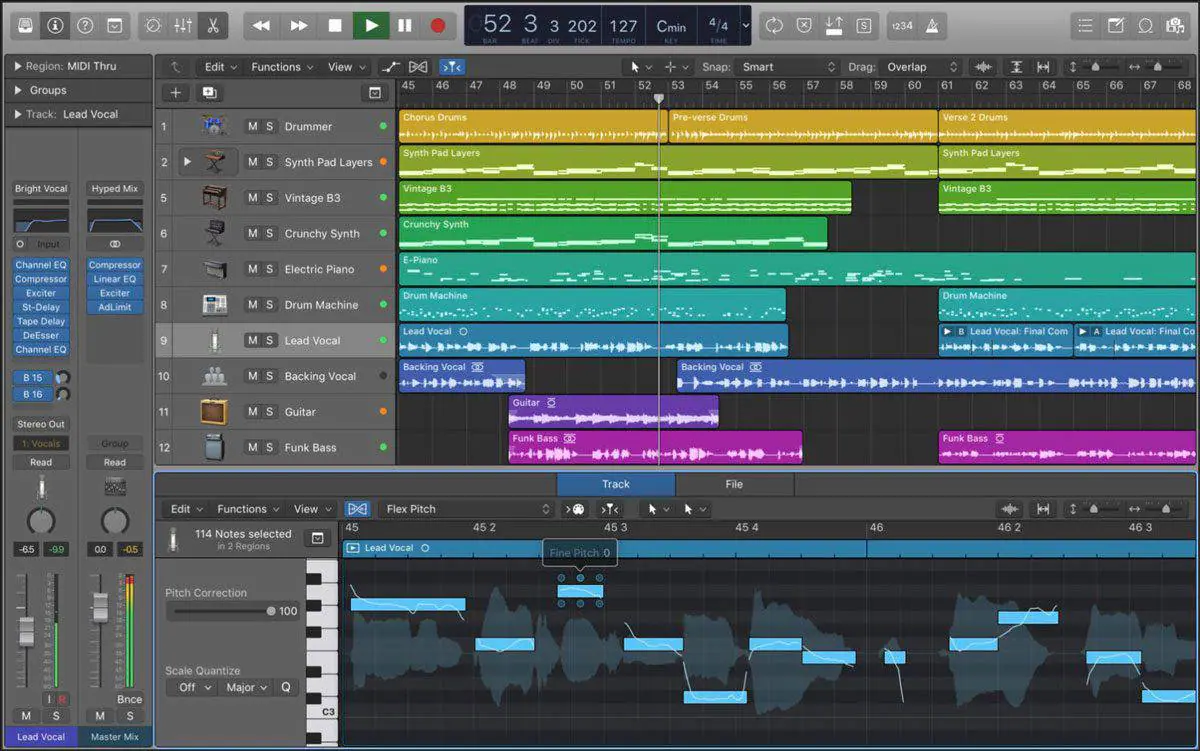
Set the audio input
Before recording, confirm Logic Pro is listening to the studio system, not the Mac mini internal microphone. Open the audio settings and choose X32 Rack (X-USB), then confirm the session sample rate is 48 kHz.
Insert the track according to the source: mono for one microphone, stereo for a two-channel keyboard, playback, or reference recording. Choosing the wrong input source in Logic Pro is one of the fastest ways to record silence or the wrong instrument.
Settings to check
Audio device
Logic Pro > Settings > Audio > X32 Rack (X-USB)Sample rate
48 kHzTrack setup
Track inserted according to the sourceUnderstand gain staging
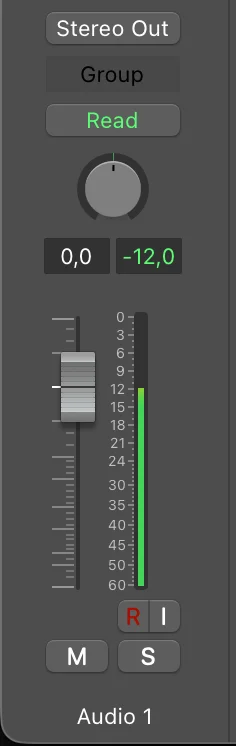
Gain staging means keeping the signal strong enough to be clean, but not so loud that it clips. Ask the performer to play the loudest part, then adjust the X32 input gain until Logic peaks around -12 dB.
Do not chase maximum loudness while recording. A slightly quieter clean take is much easier to mix than a loud distorted take.
Record, edit, and export
Arm the track, enable monitoring only if needed, record a short test, then listen back before recording the full take. If the test is clean, record the complete performance and label it clearly.
For beginner editing, focus on three actions: cut silence, add short fades at edit points, and choose the best take. Create a high quality export for editing and master archive, then create a compressed export for easy sharing.
Settings to check
High quality export
WAV, 24-bit, 48 kHz for editing and master archiveCompressed export
MP3, 320 kbps for easy sharingName the project before recording. Date, class, performer, and song title are enough.
Use markers for verse, chorus, bridge, or rehearsal notes.
Keep the first successful take. It is often useful as a safety reference.
Recording a single microphone on a stereo track.
Recording with the wrong input source selected in Logic Pro.
Letting peaks hit red because the waveform looks bigger.
Saving projects on the Mac internal drive instead of the NVMe SSD.